App Store · Official Manual

ShadowrocketGetting Started Guide

A rule-based proxy client for iPhone and iPad. Verify the app, import your existing configuration, and understand rule-based routing and the limits of a one-time purchase.

  • Rule
  • Subscribe
  • WireGuard

Shadowrocket
Six Things It Can Do

Choose a topic based on what you need to do. Understand the setting first, then open the relevant chapter.

DOMAIN-SUFFIX,example.com,PROXY

Rule: Route Traffic by Match

Rule-based routing lets different requests use different handling methods. In Config, first confirm which configuration is active, then check the Rule match conditions and policy names. DOMAIN-SUFFIX matches domain suffixes, DIRECT connects without a proxy, and PROXY must refer to a valid policy in your configuration. Rules are usually evaluated in order, so put the fallback rule last. If a site is routed differently than expected, check which rule matched before switching servers. This example illustrates syntax only; it is not a complete configuration for every network.

Go to the relevant manual chapter →

Devices and App Store

Getting Shadowrocket on iPhone and iPad

Check device compatibility on the App Store, then confirm which Apple ID you use for purchases. Refer to the App Store listing for system requirements and purchase availability; installation on another device is not a reliable indicator.

iPhone

Purchase and open Shadowrocket from its App Store product page. When you connect for the first time, the system will ask to add a VPN configuration. Confirm that the request comes from the app you are using, then follow the system prompt to allow it. Authorization is only a prerequisite for connecting; you still need to import your own server information.

View instructions →

iPad

Check the App Store purchases list with the Apple ID used for the original purchase, then follow the product page prompts. Refer to the App Store listing for purchase availability across devices. Purchase history and configuration are managed separately; after downloading the app, also check that your subscriptions, active server, and rule file are in place.

View instructions →

Shadowrocket is also available on Mac and Apple TV from the same App Store. Check the App Store listing for system requirements and purchase availability.

On the App StoreGet Shadowrocket View App Store steps →

First Connection: Step by Step

How to Use Shadowrocket: Three Checks

These steps assume you already have your own subscription or server information. First, establish a connection you can verify; then add automation and more detailed rules. Each step has a clear checkpoint, making it easier to return to the right place if something fails.

  1. 01 / Add Your Information

    Add Server or Subscribe

    If you have complete server details, select Type in Add Server, then enter the address, Port, and authentication fields as provided. If you have a subscription link, choose Subscribe and check the SERVER list after saving. Before adding a server by scanning a QR code, confirm that it comes from your own configuration details. After importing from the clipboard, open the entry and verify its type and address.

    A name appearing in the list only confirms that something was imported; it does not prove that the server can connect. If no entries appear, first check whether the subscription returned the correct content, the link was truncated, or required fields are missing. Do not move straight to mode settings.

  2. 02 / Choose How to Handle Traffic

    Check Global Routing

    The Config mode uses the selected configuration to handle requests; Proxy mode handles requests through a proxy; Direct mode connects directly. These options change how traffic is handled, but they cannot fix incorrect server details. For rule-based routing, confirm that the file in Config and its policy references are correct.

    When troubleshooting, note the original option and change only one setting for a comparison test. Scene relates to scene configurations and does not need to be set up during the first connection. Avoid changing the server, rule file, and network all at once; otherwise, even if the problem is resolved, it will be hard to tell what made the difference.

  3. 03 / Connect and Verify

    Turn on the connection and test actual access

    Select an existing server and run Connectivity Test, then turn on the connection switch at the top of Home. For your first connection, allow the system to add a VPN configuration when prompted. Check the connection status, then visit the content you need and verify whether a connection is established, traffic is flowing, and requests are handled as expected.

    A connected status does not mean every request has been verified. If only some content fails, check rules and related settings such as DNS. If everything fails, start by checking the current network, server details, and service status. When describing the issue to someone else, share the symptoms but hide subscription URLs and authentication details.

View the full guide →

App Authenticity and Purchase Details

Verify the App, Then Separate Purchase from Configuration

Shadowrocket is a closed-source commercial app available only on the App Store. This is the official website and manual, covering how to verify your purchase and use the client. No servers or subscriptions are provided, sold, or recommended here.

Three Things to Verify

Developer, Icon, and App ID
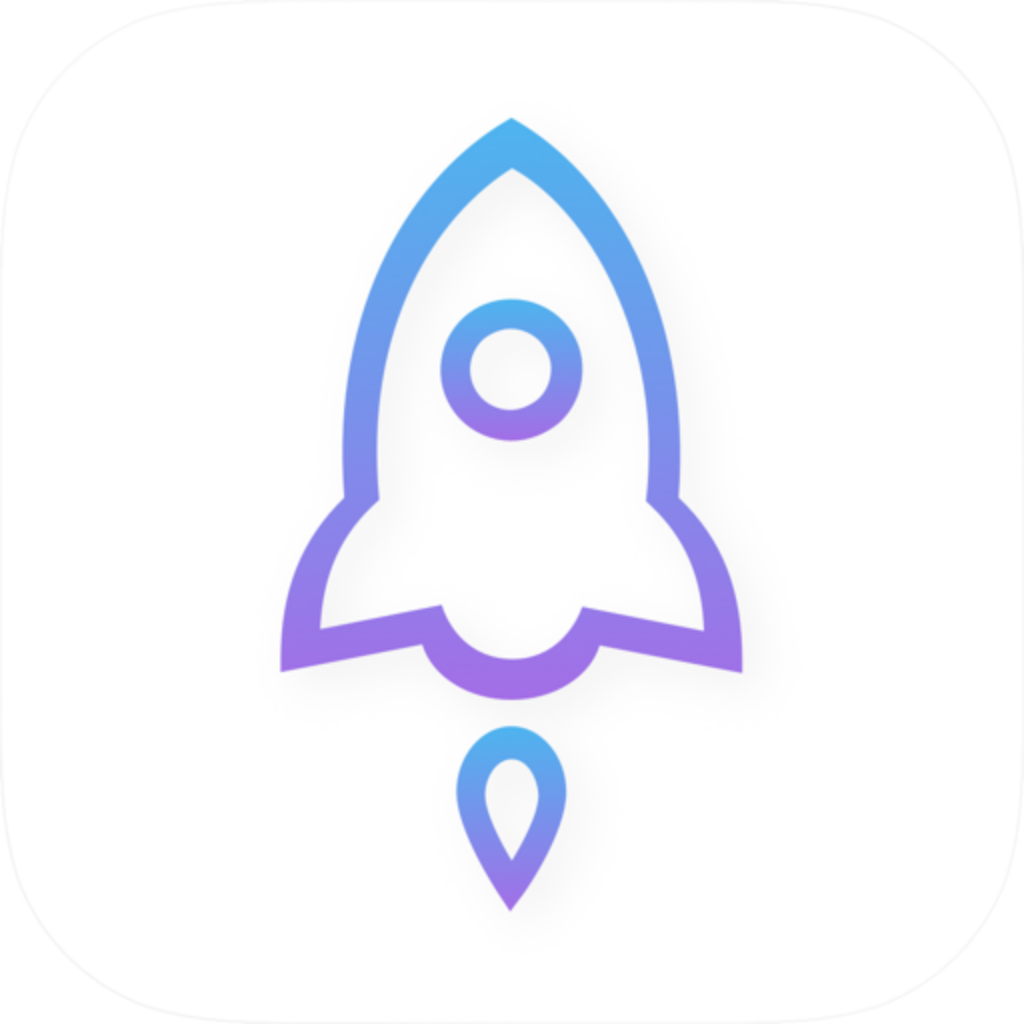
Official Shadowrocket app icon for comparison with the App Store product page

Shadow Launch Technology Limited
id932747118

Do not rely on the app name alone. On the product page, check the developer name, app icon, and id932747118 in the URL. The developer, official icon, and app ID should all match. Use the icon on this site for comparison, but confirm purchase details on the App Store page.

If you open a product page from search results, verify that page again rather than buying based on a similar name in the results list. Similar app names do not guarantee the same product.

Client and Service

A one-time client purchase ≠ a service subscription

A one-time purchase gives you the right to use the Shadowrocket client. The US storefront price is about $2.99; other storefronts display local currency, and the final price is shown at checkout. This purchase does not provide a usable server or automatically create a subscription link.

You manage your own server information and subscriptions. This site explains how to import, update, and manage them. If your subscription list is empty, first make sure you have complete details ready. A successful app purchase does not mean a service has been configured. Check the app purchase record, subscription status, and network connectivity separately.

App Store Availability

Check Purchase Availability in Your App Store

Product page availability, displayed currency, and purchase prompts depend on the current App Store storefront and account status. If the page will not load or a purchase is unavailable, first check your store account, device compatibility, and the page prompts. Then follow the verification steps on the App Store guide; do not infer pricing or device compatibility from a search snippet.

Always check the App Store listing for system requirements. The listing also provides compatibility and purchase information, so checking it is more reliable than relying on a fixed system version number. Follow the official store and system processes for account or payment issues.

Purchases, Restore, and Updates

Manage Purchase History and Configuration Backups Separately

When changing devices or downloading the app again, check the App Store purchases list using the Apple ID from the original purchase, then follow the options shown on the page. Refer to the App Store listing for purchase availability across iPhone and iPad. Family Sharing availability should also be confirmed on the product page and in system prompts.

Restoring the app does not necessarily restore all local configuration. After opening it again, check subscription groups, the active server, Config files, and connection permissions. App updates are managed through the App Store. Back up important configuration separately before making changes, then verify your existing connection flow after an update. Purchase credentials are not a configuration backup.

View the app verification checklist → Read purchase and connection FAQs →

Keep Reading by Topic

Update Subscriptions, Choose Servers, and Stay Organized

Once your first connection works, move on to routine maintenance. Name subscription groups, learn what test results mean, then decide how to update and organize your list. The articles below assume you already have a configuration and do not recommend subscription sources.

Browse all articles →