Official Manual / First-Time Setup
Shadowrocket Getting Started
Add an existing server, choose Global Routing, then connect and verify. Allow about 10 minutes for the initial setup. Follow the steps in order and avoid changing multiple settings at once.
Step 01 / Make a Server Available on Home
Add Server: Add a Server or Import a Subscription
First, identify what kind of information you have. A link that provides a set of servers and can be refreshed periodically is usually imported as a subscription. If you only have an address, port, protocol, and credentials, enter the details as a single server. Choose one method; there’s no need to add the same information twice. Get the subscription link from your own service provider. Before importing it, make sure it belongs to your account, and copy it without any explanatory text or trailing spaces.
Have a Subscription Link? Use Subscribe
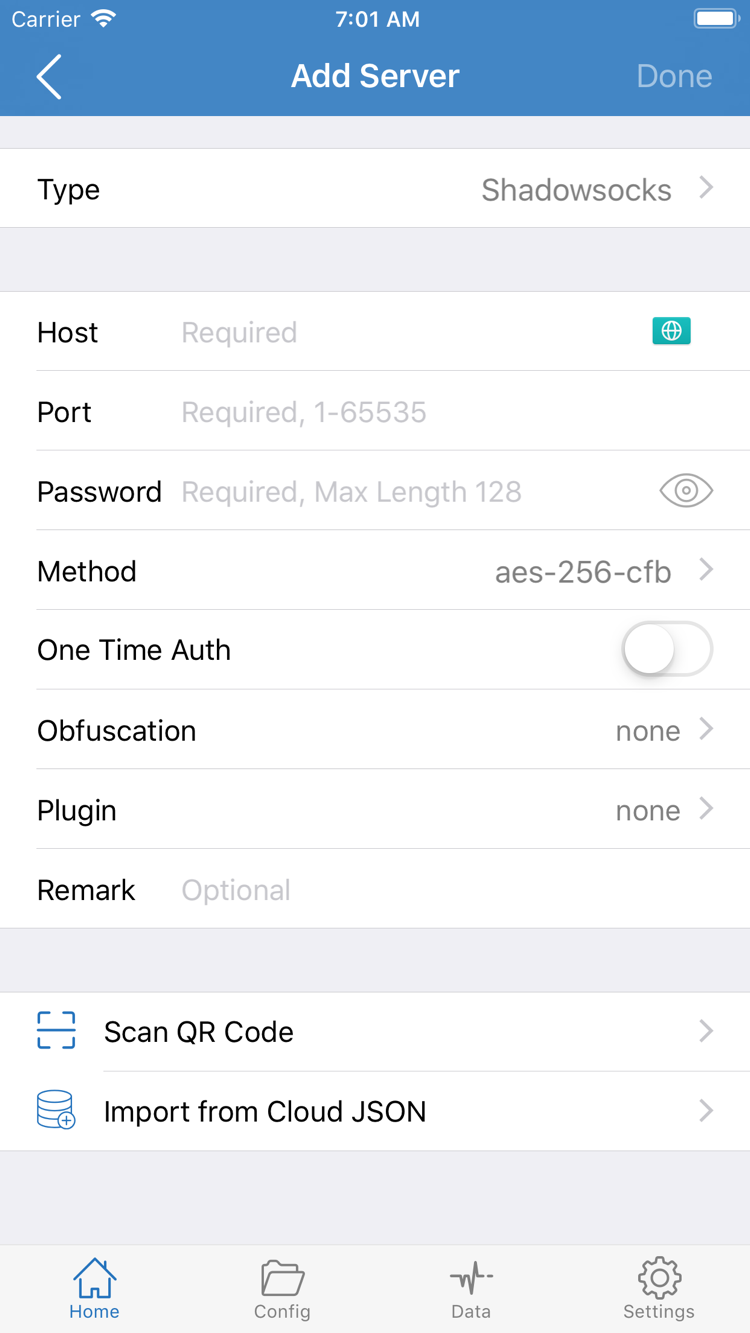
Open Home, tap the add option to open Add Server, then tap Type and select Subscribe from the list. Back in the form, enter the full subscription link in the URL field. Add a note if needed to help identify it, then tap the on-screen save button. A subscription retrieves and maintains a group of server entries; it does not replace the connection switch.
After saving, return to Home and wait for the subscription to load. Check whether the expected group and servers appear under SERVER. If you see the subscription name but no selectable servers, check whether the update succeeded before proceeding to connect. The link may have expired, or it may return a login prompt or other unsuitable content. For details, see Troubleshooting: Importing Subscriptions and Servers.
Have Details for a Single Server? Fill Them In by Type
In Add Server, set Type to the protocol specified in your information, then fill in each field, such as Host, Port, and Password. Enter the server hostname or address in Host and the corresponding port in Port. If the form includes Method, it must match your information. Fields vary by Type, so don’t assume similar-looking fields are interchangeable, and don’t paste a full subscription link into Host.
Use example.com as a sample hostname. It illustrates what the field means; it is not a working server. If your details include additional authentication, TLS, or other parameters, check each one against the original information. After saving, return to Home and confirm the entry name and protocol look right. Never put passwords or other sensitive information in a note; use notes only to identify the purpose or source.
QR Codes and Clipboard Import: Check the Details After Importing
If your information is provided as a QR code, use Scan QR Code, allow camera access when prompted, and scan the code containing your existing details. If you have a server share link, use the app’s clipboard import option. After a successful import, check Type, Host, and Port before saving. QR codes and share links only carry parameters; scanning one does not mean the server can connect.
By the end of this step, Home should show at least one selectable server. You don’t need to organize multiple subscriptions, duplicate entries, update settings, or backups during initial setup; you can do that later using the Subscription and Server Management Manual. Next, decide how traffic should be handled before turning on the connection.
Step 02 / Choose How Traffic Is Handled
Global Routing: Config, Proxy, and Direct
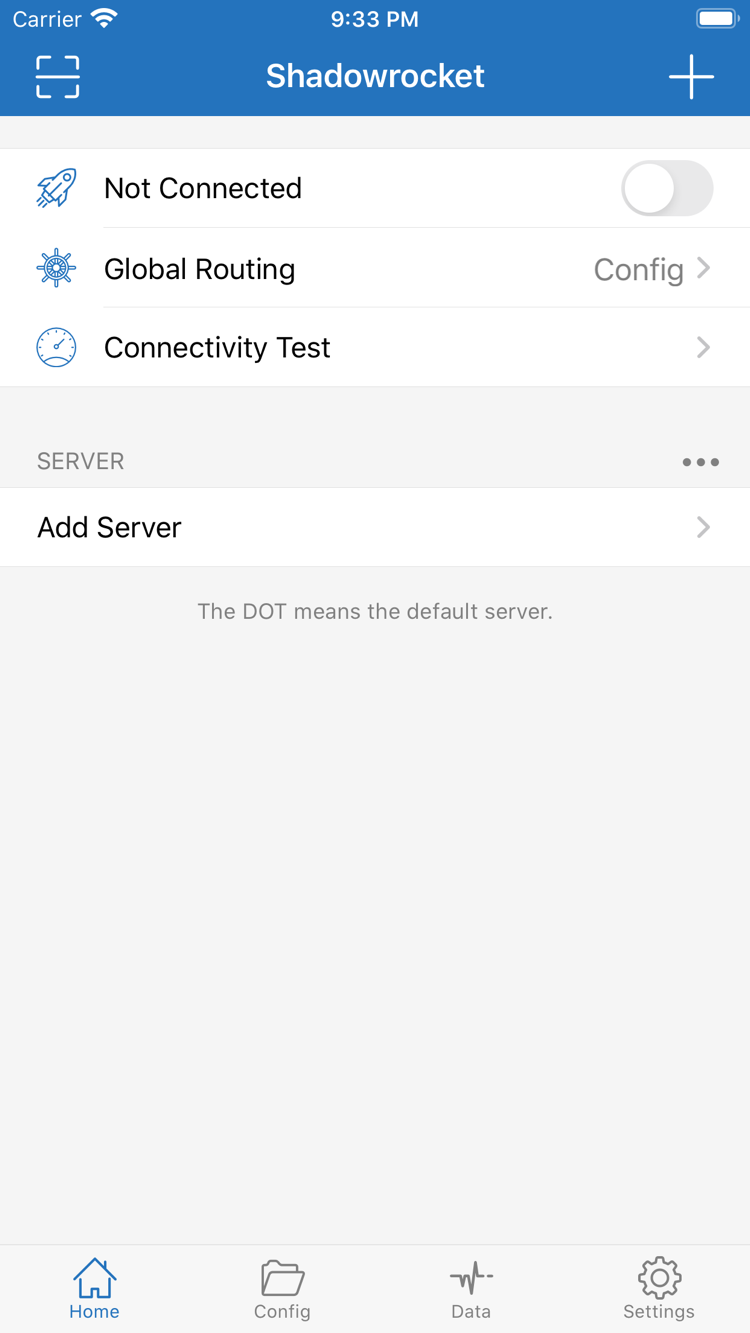
Return to Home and tap Global Routing. First, understand the three modes: Config, Proxy, and Direct. They determine how traffic is handled when the connection is on; they are not three servers and won’t fill in server details for you. Note your current selection before switching so you can restore it after testing.
Config: Apply the Rules in the Selected Configuration
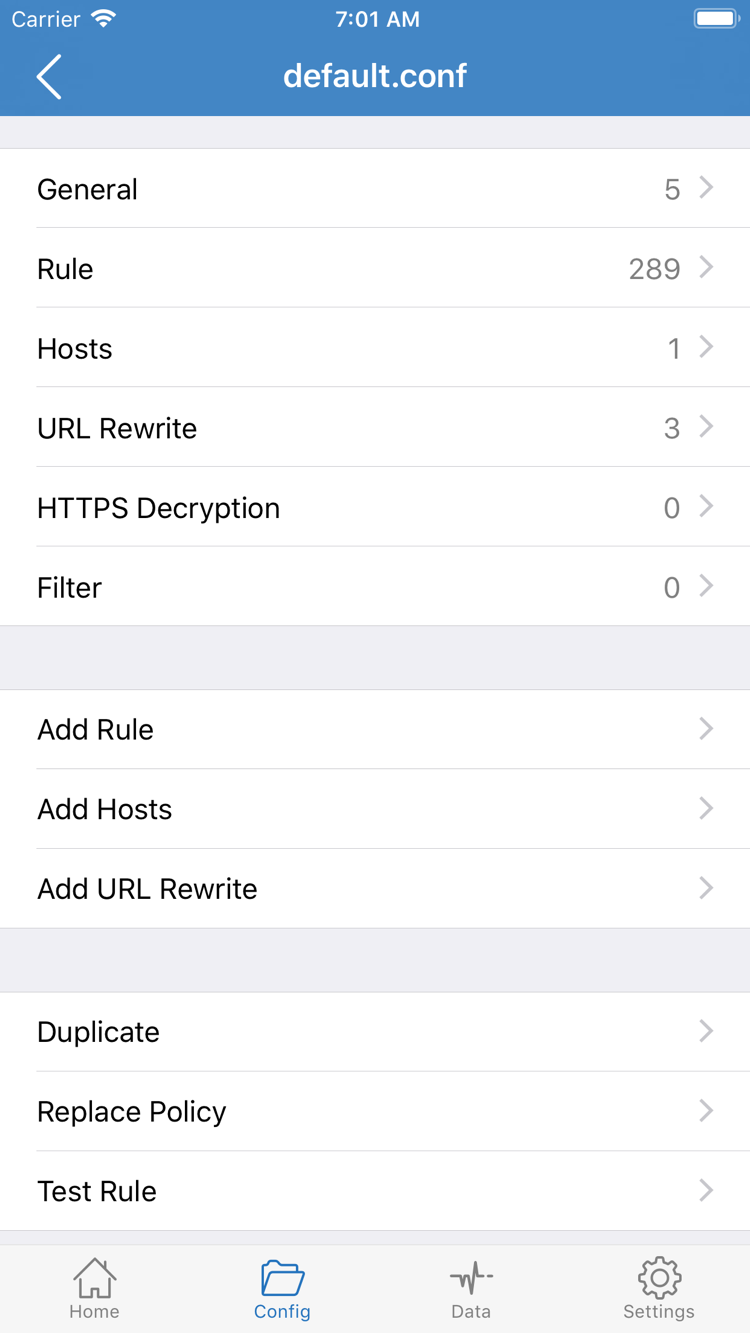
With Config selected, traffic is matched against the rules in the currently selected configuration file and handled according to the corresponding policies. Open the Config page and confirm that the intended configuration file is selected. To review its contents, open the file editor. Sections such as General, Rule, and Hosts in the official screenshot are part of the configuration—not forms you need to fill out for your first connection.
If you already have a trusted configuration, read its instructions first, then check that the policies referenced by its rules are available. Rules are usually matched in order. For example, DOMAIN-SUFFIX,example.com,PROXY sends matching domain suffixes to the specified policy. PROXY must have the intended meaning in the actual configuration context; pasting a standalone example line does not complete traffic routing.
Proxy: Check the Connection to the Selected Server
Proxy routes traffic covered by this mode through the proxy. During initial troubleshooting, you can select it temporarily to reduce interference from rule selection and check whether the selected server has basic connectivity. This is only a test step; it does not mean Proxy is the right choice for every situation or that every destination will be reachable. After testing, choose whether to switch back to Config based on your setup.
Direct: Connect Without the Selected Proxy Server
Direct connects without using the proxy. If Direct is selected, an enabled VPN configuration does not mean traffic is going through the selected server. If the result differs from what you expected, first check the current selection in Global Routing. This is more useful than importing the subscription again.
During initial setup, don’t also change URL Rewrite or HTTPS Decryption. They aren’t required to connect to a server, and their configuration effects are different. For now, note the selected mode and confirm the file selected in Config or the server selected in Proxy. For more on rule order and policy names, see Rule Routing and Troubleshooting. Next, make an actual connection.
Step 03 / Select an Entry and Allow the VPN Configuration
Home: Turn On the Connection
Return to Home and select one of your existing servers under SERVER. Select a specific entry, not just the subscription group name. If you have several entries, stick with one for the first test. Changing servers and modes at the same time makes it hard to tell what caused a change. Confirm that Global Routing is still set to the mode you chose in the previous step.
Find the switch next to Not Connected at the top of Home and turn it on. The first time you connect, your iPhone or iPad may show a system prompt to add a VPN configuration. Confirm that the request is from the Shadowrocket app you’re using, then allow it and complete any required device authentication. This permission sets up the device’s VPN configuration; it is not a confirmation to purchase the app or a subscription.
After granting permission, return to the app and check whether the status at the top changes from Not Connected to connected. If you canceled the system prompt, start the connection again and allow the configuration; there’s no need to delete the app. The VPN indicator in the system status bar can help confirm that the configuration is active, but its appearance and location vary by device. Check Home’s status as well.
A connected status means the connection process has started; it doesn’t confirm that all access is working. An unreachable server, mismatched parameters, or incorrect rule selection can make the displayed status differ from the actual browsing experience. After turning on the switch, don’t change a batch of settings right away. Move on to the next step and run a limited test.
When you’re done, return to Home, turn off the switch, and confirm that the status changes. If another VPN configuration is active on the device, identify which one is controlling the connection before testing to avoid misleading results. For initial setup, connect manually. Configure On Demand separately after confirming that the basic connection works.
Step 04 / Check Status, Connectivity, and Access Separately
Connectivity Test: Verify That It Works
Verify in three stages: check the connection status, test the server, then try actual access. Each stage answers a different question; none replaces the others. The Home status shows whether the connection is enabled. Connectivity Test reports the result for a specific test method. Opening a real page shows whether the current combination of network, server, and mode can handle your request.
On Home, tap Connectivity Test to test an existing server. First check whether you get a result, then see whether it’s consistent. A single low-latency result doesn’t guarantee speed or reliability. Test methods may measure different things, so compare results only when using the same method under similar network conditions. If an entry times out, test it once more and check your basic network before deleting the entire subscription.
Next, open a familiar page that you know should load, refresh it, and try another page so you don’t rely on cached content. Start with a simple page, then test the app you actually need. If a simple page loads but a particular app fails, you’ve narrowed down the issue; don’t assume the entire connection is broken.
With Config selected, also check whether the results match your routing goals. Some destinations should use DIRECT, while others should use the proxy. Successful direct access doesn’t prove the proxy path is working. Check the app’s connection records for the rules and policies matched by a destination, then compare them with your current configuration. Records may contain domains or other browsing details; redact sensitive information before sharing them.
Your first connection is complete when the status is normal, the test gets a response, and actual access works as expected. Note the server label, Global Routing mode, and network type as a baseline for future troubleshooting. If any stage fails, follow the next step to check from the network up through the app settings. There’s no need to repeat the entire import process.
Step 05 / Keep Your Existing Details and Narrow Down the Issue
Settings and Common First-Connection Problems
First, identify where the failure occurs: the subscription doesn’t load any entries, the switch won’t stay on, Connectivity Test gets no response, or only some access fails. Each symptom calls for a different set of checks. Note the exact message shown in the app, then troubleshoot the relevant step. Don’t start by deleting the app, or you may lose local settings and useful clues.
Check Your Network and Subscription Update First
Turn off the connection temporarily and check that your Wi-Fi or cellular network works normally. If the network requires a login, complete network authentication first. Then check whether the subscription updated successfully. If it didn’t, verify the full link, its validity, and what you copied. If needed, ask your own service provider whether the original link is still valid. Subscription links may contain account credentials; don’t share the full link in public screenshots or support requests.
Then Check the Server Fields and Mode
For a manually added entry, compare every field with the original details, especially Type, Host, Port, Password, and any other parameters required by the protocol. A field being filled in doesn’t mean its value is correct; similar-looking characters, missing information, or the wrong Method can affect the connection. If a subscription manages the imported entries, check its update status before editing them to avoid having local changes overwritten on the next update.
If the server test gets a response but actual access fails, return to Home and check Global Routing. With Config selected, check the active file and rule policies; if needed, temporarily switch to Proxy to compare one condition. If the issue occurs only with Config, focus on the rules and policies rather than re-entering a server that you’ve already verified. If Direct is selected, first confirm that it matches the goal of your test.
Finally, Check Test Settings and System Permissions
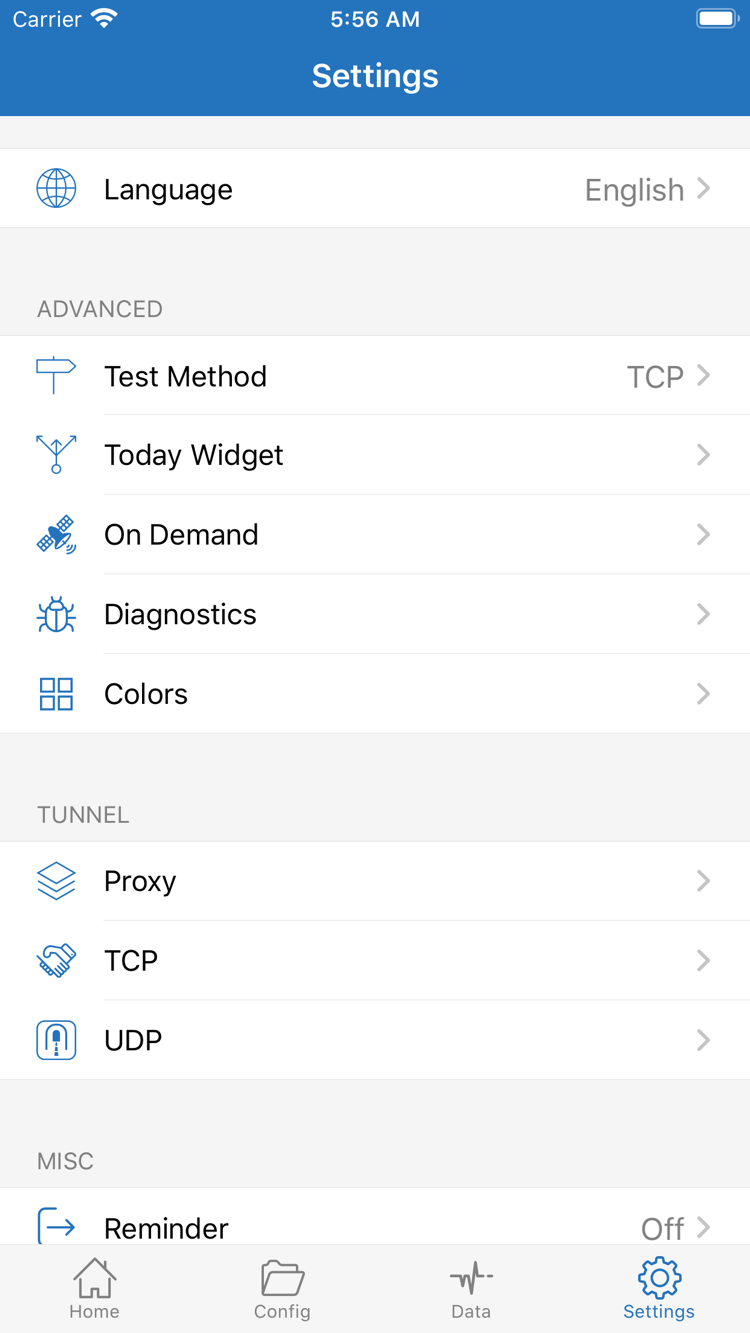
Open Settings and find Test Method. Confirm the current method, then return to Home and test again using the same method. Diagnostics in Settings provides another place to investigate; diagnostic information offers clues but won’t automatically fix every connection issue. When recording the results, include only the error message, test method, and steps leading up to the issue. Hide passwords, subscription links, and other credentials.
If the top still shows Not Connected, consider whether you canceled the initial system authorization prompt, then start the connection again and follow the prompt. If the switch is on but actual access fails, go back to checking the server and mode rather than repeatedly changing system permissions. If an error in the records is unfamiliar, look it up in Troubleshooting. Avoid changing several advanced options based on a single word.
On Demand: Set It Up After the Basic Connection Works
On Demand starts a connection under specified conditions; it won’t fix incorrect server details. First verify that you can connect and disconnect manually, then configure it to suit your network habits. If the connection keeps restarting during a test, check whether On Demand is enabled and adjust it temporarily once you understand the current conditions. You don’t need to change advanced Settings such as Proxy, TCP, or UDP during initial setup.
You’re done with this guide when you can select a server, Global Routing matches your goal, the switch turns on and off normally, and actual access has been verified. Organize, update, and back up subscriptions later using the Server Management Manual. If a specific problem comes up, keep your current configuration and look up the matching symptom; that’s usually easier than starting over.